To change the number of columns in your card
Hover over top right of the card to reveal the column menu
Select 2, 3, or 4 columns
Select the 3-dot menu to make content full-width, or select Remove column layout to delete the columns

You can also add columns inline.
Click anywhere in the editor
Press enter on your keyboard to reveal the floating elements menu
Press “columns”
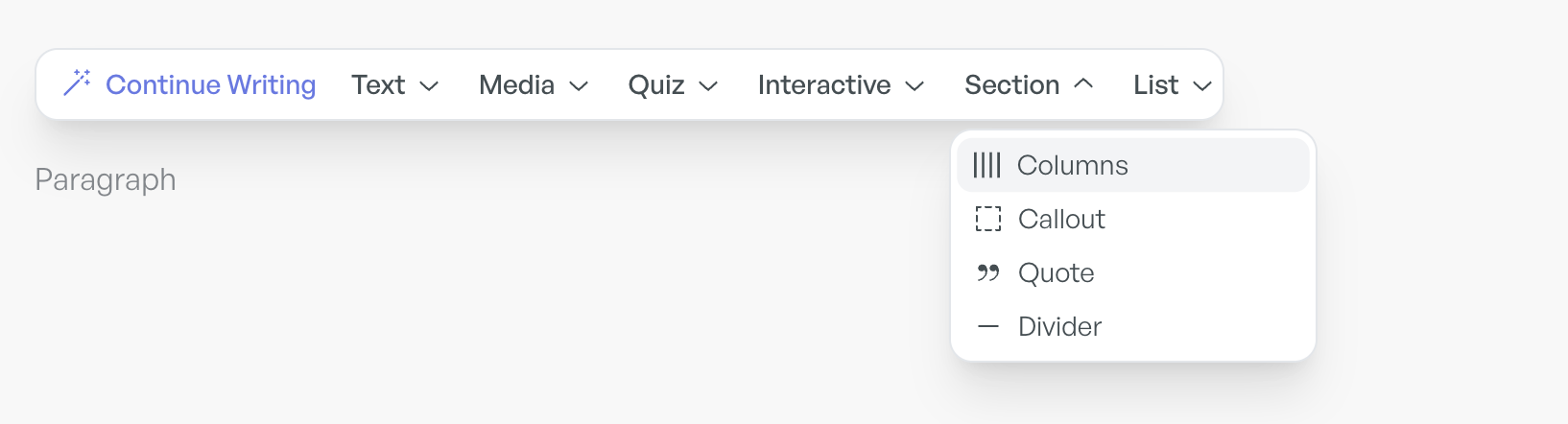
…Or add columns to a new row
Hover over the top or bottom of a card to find the [+] button
Press enter on your keyboard to reveal the floating elements menu
Press “columns”
This allows you to include multiple rows in a card, each with a different number of columns (see last example on this page)

Full-width:

2-column:

3-column:

4-column x 2 row:
(Top row is full width, second row has 4 columns)

