CreateUpon's AI Audio Output feature transforms your course content into engaging audio narrations, making your courses more accessible and providing a multi-modal learning experience. This feature allows learners to listen to course content while on the go, catering to different learning styles and accessibility needs.

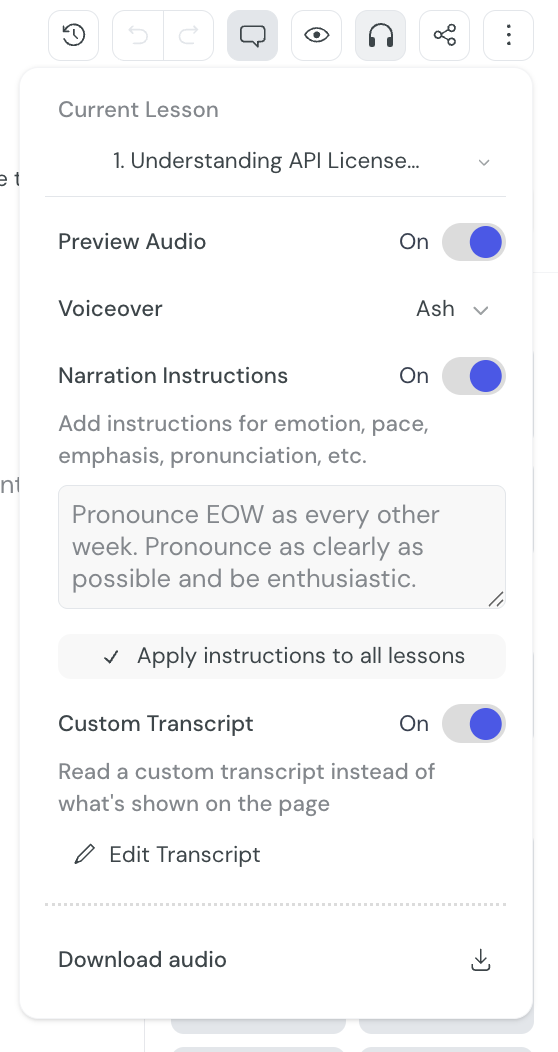
Current Lesson
The current lesson will be automatically selected. You can switch to a different lesson by selecting it from the dropdown. Settings are set individually per lesson.
Preview Audio
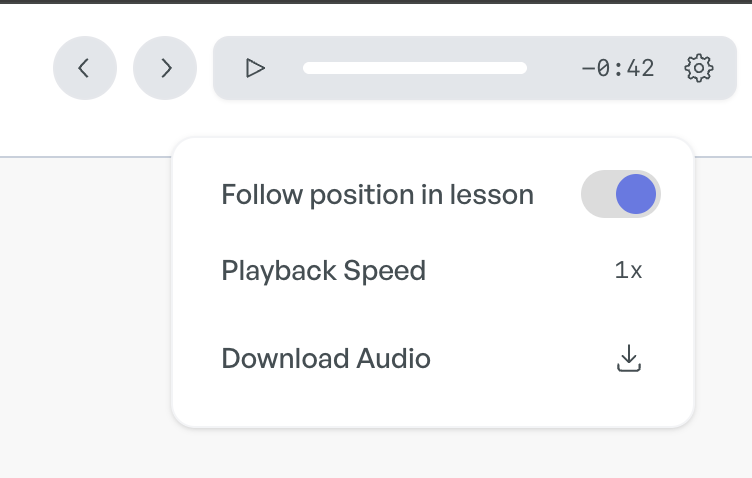
Allows you to preview audio for individual cards within your course. You can access the preview in the floating toolbar at the bottom of the editor. For more information see the Playback section further down in this article.
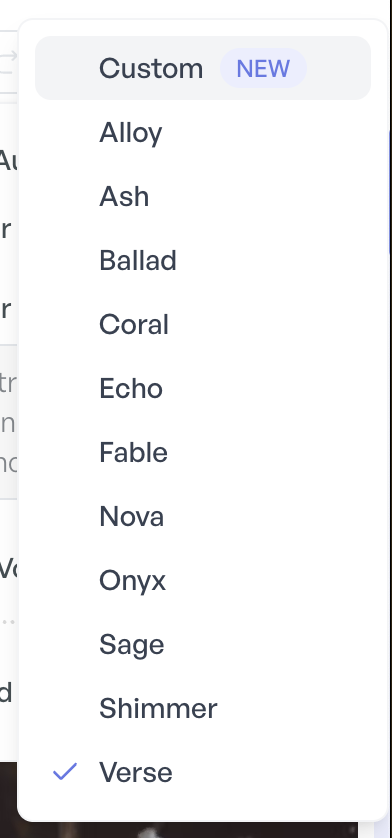
Voiceover
AI Voiceover (recommended): Choose from a curated set of natural, expressive AI voices to narrate your course. We've recently upgraded our text-to-speech so narration sounds noticeably more natural and human. Each voice has its own character, so you can pick the one that best matches your course's tone and style.
Self-recorded Voiceover: Record your own voice for a more personal touch. This feature allows you to upload custom audio recordings for specific lessons, replace AI-generated narrations with your own voice and create a more personalized learning experience.
To use this feature, choose “custom” from the voice list:
Narration Instructions
We've recently added a powerful new feature that gives you more control over how your AI content is narrated. The upgraded voices follow these instructions closely, so pauses, emphasis, and accents come through reliably. The Voice Instructions feature allows you to:
Provide specific pronunciation guidance for technical terms, acronyms, or names
Adjust the pace, tone, and emphasis of the narration
Add pauses at strategic points for better comprehension
Request a specific accent or regional variant, for example Australian English or Latin American Spanish
Customize the emotional delivery of your content
Example Instructions For Technical Training:
Pronunciation: Pronounce "a11y" as "accessibility".
Pace: Slightly slower when explaining code examples.
Tone: Precise and instructional, like an expert developer guiding a colleague.
Pauses: Brief pause before each new technical concept to allow for processing.
Example instructions For Leadership Training:
Tone: Authoritative yet friendly, like an experienced mentor.
Pace: Measured with pauses after key points.
Emphasis: Stress strategic concepts like "team alignment" and "delegation".
Emotion: Convey confidence and warmth, especially during action items.
Accent: Australian English.
Custom Transcript
Edit the transcription used for the lesson. You can add, edit and remove wording to provide a superior experience for learners using audio-only learning methods.
Download audio
Download an audio file for the lesson based on the currently selected settings.
Audio Controls
The audio player includes standard controls:
Play/Pause
Playback speed adjustment (0.5x to 2x)
Time scrubbing
Volume control
Download option (available on paid plans)
Card-by-Card Playback
Students can toggle between full lesson playback and card-by-card playback modes depending on their preference.
Follow position in lesson: Plays only the content of the current card (default)
Full Lesson: Plays the entire lesson content continuously
Best practices
Choose the right voice for your content type and audience
Use voice instructions to customize pronunciation of technical terms
Preview audio before publishing to ensure quality
Consider recording custom voiceovers for introduction sections to establish a personal connection
Enable card-by-card playback for content with complex concepts that may require repeated listening
Limitations
Free plans have limited audio generation capabilities
Processing very large audio files may take longer
Custom voiceovers require good recording equipment for best quality
Need Help?
If you have questions about the AI audio output feature, please contact our support team or visit our knowledge base for more detailed tutorials and examples.
