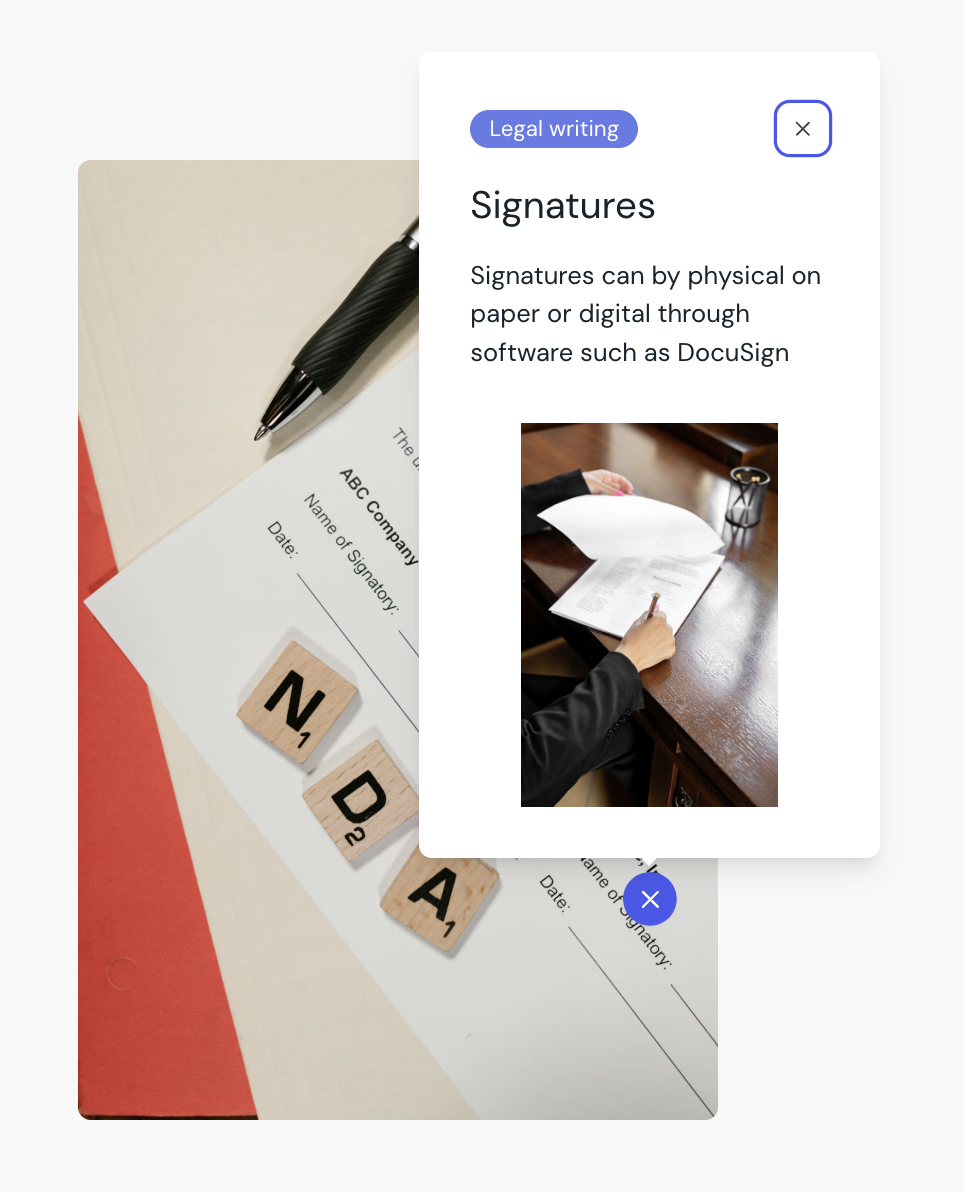
🎯 Add an image with markers to your course
Select Image + Marker in the element list.
Choose the image you would like to use.
Hover over the image and select add marker.
Click the marker on the image to enter the details you would like to appear for learners.
Add additional markers to your image as needed.
You can:
Add a heading, text, tag and image to the marker popup.
Rearrange markers to other locations on the image.
Replace the image without losing your markers.
Remove markers from your image.