A multiple choice quiz asks learners to pick the correct answer from a list of options. Use multiple choice to check recall of facts, definitions, and concepts covered in your course.

Multiple choice quizzes work in both lessons and exams. A question can have one correct answer or several correct answers.
Each multiple choice quiz shows a question with two to four answer options. Learners select one or more options, then submit.
Scoring is all or nothing. To get the question right, learners must:
select every correct option
leave every incorrect option unselected
Partial credit is not awarded. Selecting an incorrect option, or missing a correct one, marks the question as incorrect.
Each answer can have its own explanation. Explanations display after the learner submits, helping them understand why an option was right or wrong.
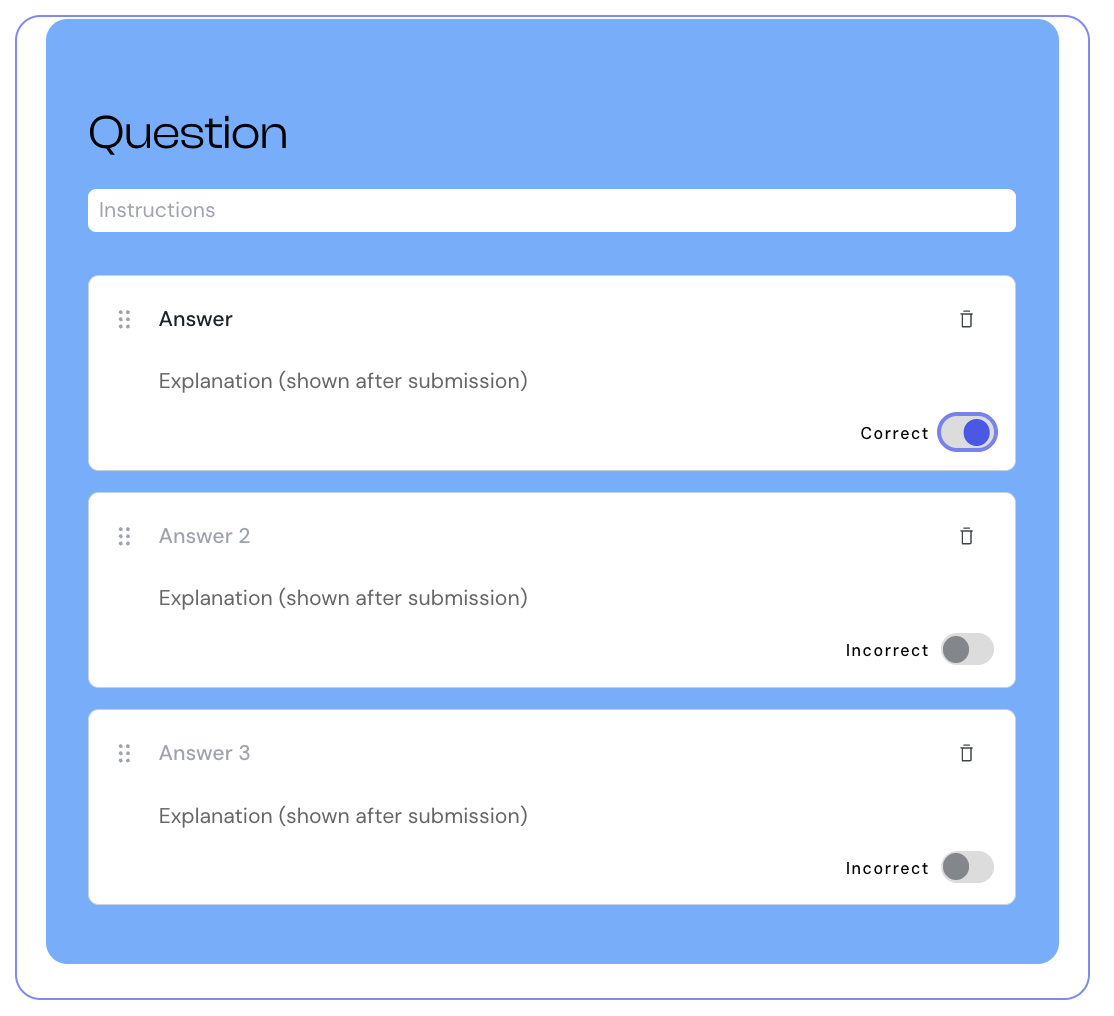
1. Select Quiz from the element list to add it to your lesson.
2. Hover over the quiz component and select Edit.
3. Enter your question. You can use rich text formatting.
4. Optionally, add instruction text to guide learners on how to answer.
5. Enter the text for each answer option. Check the box next to every correct answer.
6. Optionally, add an explanation for each answer. The explanation displays after submission.
7. Select Preview to check how the quiz appears to learners.
You can attach media to a multiple choice question, the same way you can on a carousel. Add one image, video, or embed, plus an optional narration audio clip. The media shows in both the preview and the exam view.
1. Hover over the quiz component and select Edit.
2. Select Add Media, then choose Add Image, Add Video, or Add Embed.
3. To add narration, select Add Audio and choose an audio clip.
4. Select Preview to check how the media appears to learners.
You can change the background color of the quiz to match your course design.
1. Select the quiz component in the editor.
2. Use the color picker to select a new color.
Multiple choice is one of the question types you can include when you create an exam. It is selected by default. When used in an exam:
learners' answers save automatically as they select options
feedback and explanations display only after the exam is finished
each question is worth 1 point if every correct option is selected and no incorrect options are selected, and 0 points otherwise
learners cannot change their answers after the exam is complete
The exam score is calculated as a percentage of correctly answered questions. The pass or fail result depends on the minimum score set for the exam.
Keep questions positive and direct. Avoid wording like "which of the following is not…"
Aim for two to four answer options. Too many options make the question hard to scan.
Make incorrect options plausible. Distractors that are obviously wrong make the question too easy.
Avoid "all of the above" and "none of the above" answers. They reward guessing rather than understanding.
Make answers independent. Each option should stand alone without depending on another option to make sense.
