A matching quiz presents pairs of related items and asks learners to drag each prompt to its correct answer. Use matching to test whether learners can pair terms with definitions, causes with effects, or examples with concepts.

Matching quizzes work in both lessons and exams. There are no limits on the number of pairs you can add.
Each matching quiz shows two columns: prompts on one side and answers on the other. Learners drag each prompt to its correct answer.
The order of prompts and answers is shuffled each time a learner opens the quiz. This prevents learners from memorizing positions.
Scoring is all or nothing. Every pair must be matched correctly to pass. If any pair is wrong, the quiz is marked as incorrect.
If you add an explanation, it displays after submission. Learners who answer correctly see the explanation in a green box. Learners who answer incorrectly see it in a red box, with the option to try again.
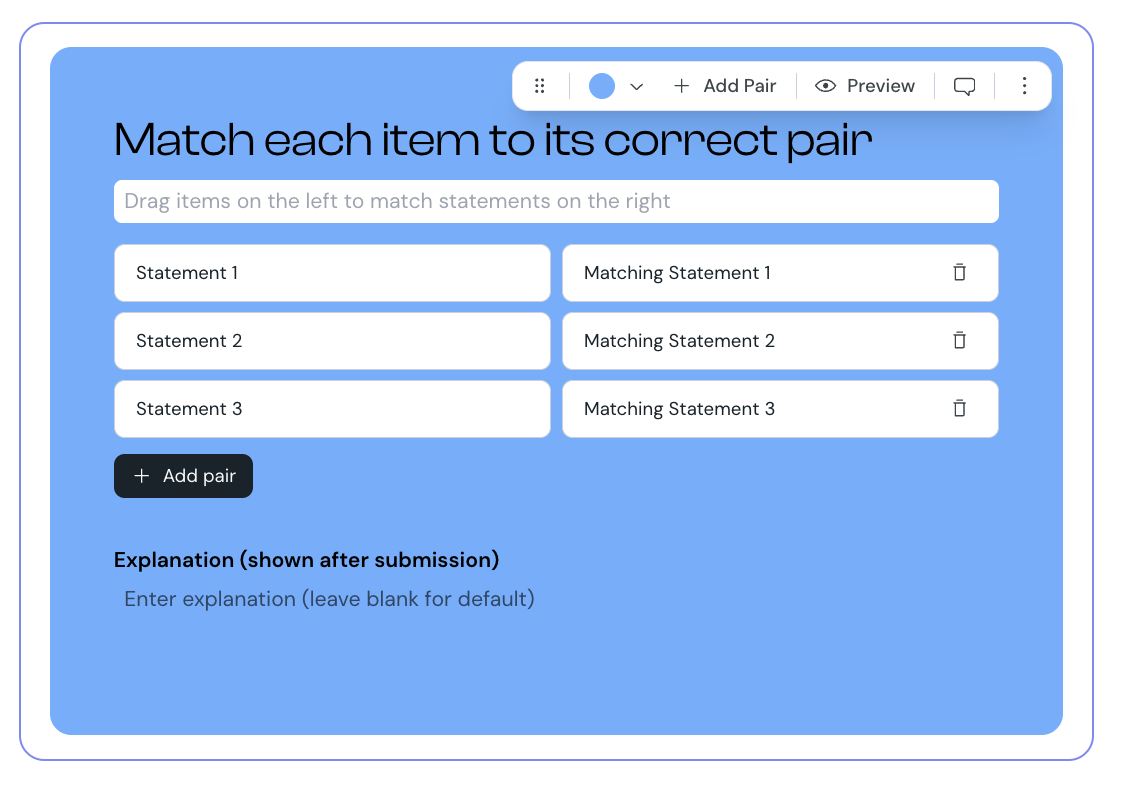
1. Select Matching from the element list to add it to your lesson.
2. Hover over the matching component and select Edit.
3. Enter your question to guide learners on what to match.
4. Enter the prompt and answer for each pair. The first item in the row is the prompt; the second is the matching answer.
5. To add more pairs, select Add pair.
6. Optionally, add an explanation to display after learners submit their answers.
7. Select Preview to check how the quiz appears to learners.
You can change the background color of the matching quiz to match your course design.
1. Select the matching component in the editor.
2. Use the color picker to select a new color.
You can also toggle the Matching label on or off. The label displays above the quiz to identify the element type for learners.
Matching is one of the question types you can include when you create an exam. When used in an exam:
learners' answers save automatically as they drag prompts to answers
feedback and explanations display only after the exam is finished
each matching question is worth 1 point if every pair is matched correctly, and 0 points otherwise
the correct pairs are not revealed to learners after the exam
learners cannot change their answers after the exam is complete
The exam score is calculated as a percentage of correctly answered questions. The pass or fail result depends on the minimum score set for the exam.
Use four to six pairs. Fewer than four is easy to guess, more than six is hard to scan
Make sure each prompt has only one valid answer. Overlapping answers create disputes about what is correct
Keep prompts and answers parallel in structure and length. This stops learners from matching by length rather than meaning
Use matching for relationships with a clear right answer: term-and-definition, cause-and-effect, item-and-category
