Card templates are ready-made card designs for your lessons. Select a template to preview it, then add it to a lesson. You can let AI fill in a template for you. You can also save your own cards as templates for your team.

The elements sidebar opens with a Recently used block. It shows the templates you used most recently.
To add a recent template:
1. Open a lesson in the editor.
2. In the elements sidebar, find the Recently used block.
3. Select a template to add it to your lesson.
To browse every template:
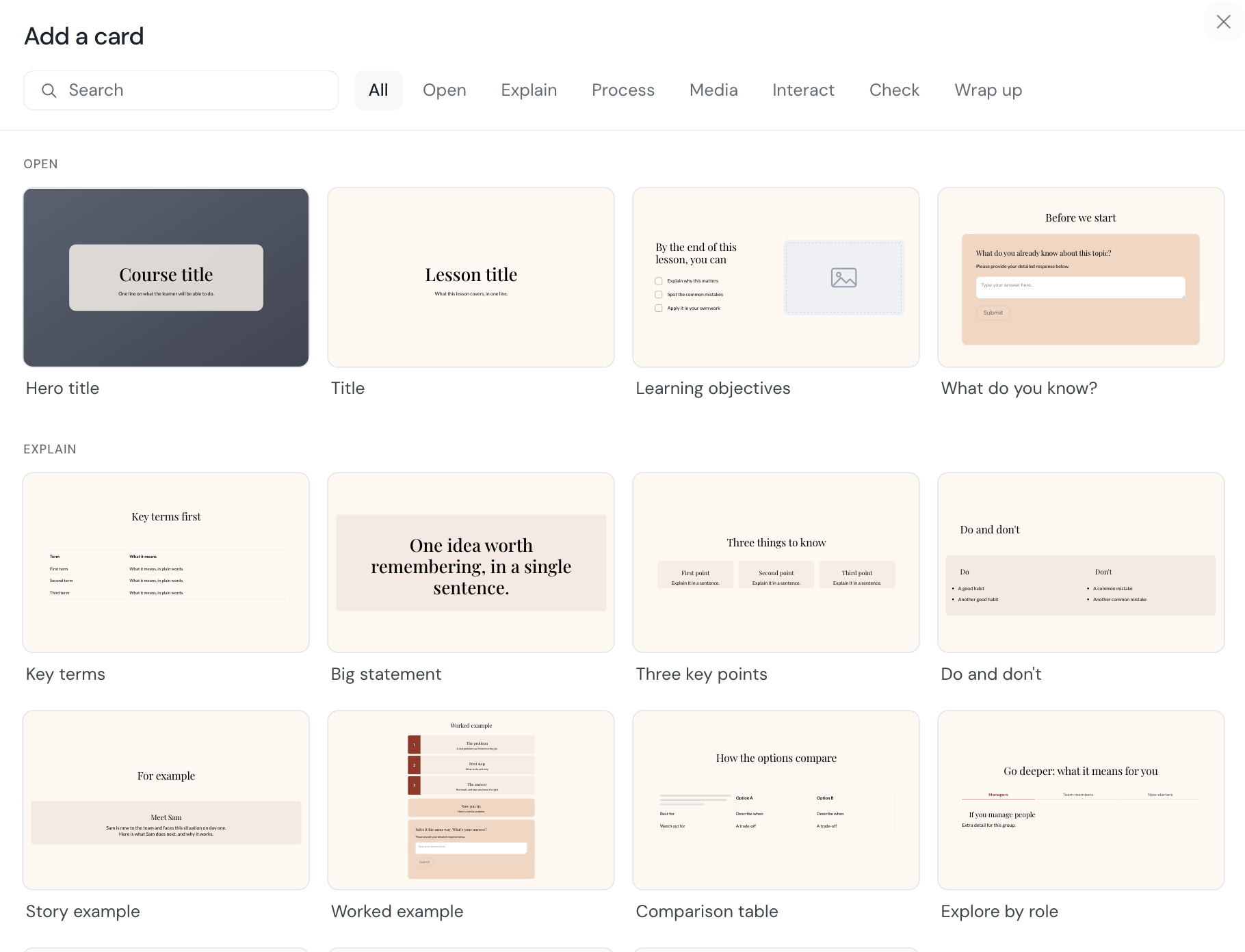
1. Select All templates to open the gallery.
2. Find a template by lesson stage, or search by name.
3. Select a template to add it to your lesson.
Templates are grouped by lesson stage:
• Open introduces a topic
• Explain teaches a concept
• Process shows steps, timelines, or cycles
• Media leads with an image or video
• Interact adds flip cards, tabs, or accordions
• Check tests understanding
• Wrap up helps learners recall the lesson
Each template is a live preview in your course colors, fonts, and styles. The preview matches the card you add.
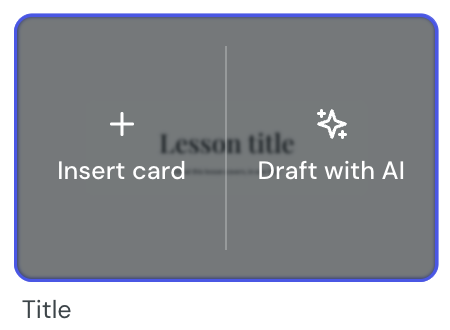
The AI Assistant can fill in a template with content for your lesson.
To draft a card with AI:
1. Select the draft icon beside a template, or select Draft with AI in the gallery.
2. The AI Assistant adds the card and writes the content.
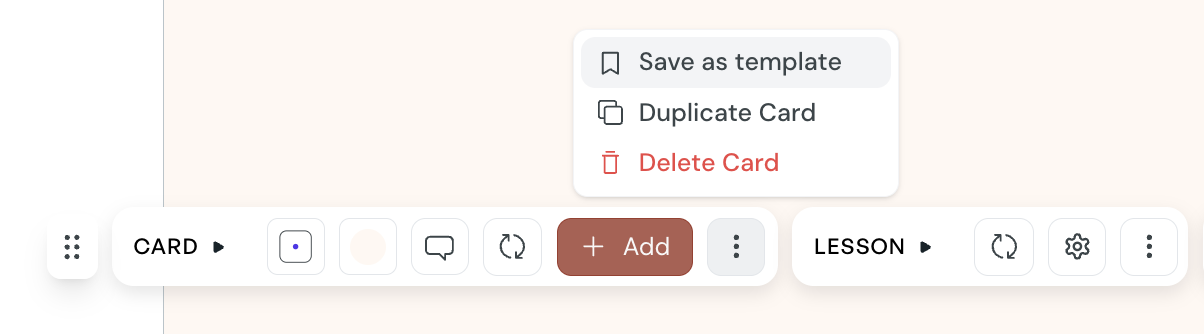
Save a card you want to reuse. Your team can then add it to their courses.
To save a card:
1. On the card, open Other card settings.
2. Select Save as template.
3. Enter a name, then save the template.
Saved templates appear in the Saved group at the top of the gallery. They also appear in the sidebar recents and search.
A saved template keeps its own copy of its images, background, and media. It holds its look even if the original course changes. When added to a course the AI will populate text based on the context of the lesson and the template.
Saved templates are shared with your team:
• all course authors can add a saved template to a course
• only the creator or an admin can rename or delete a template
• Rename and Delete appear only when you can manage a template
• saved templates stay within your team and are not shared with other accounts
The AI Assistant can find and use your templates. Ask for a card type or a saved template in plain language.
For example:
• "Add a recall card to wrap up this lesson"
• "Use our team quiz template for this question"
The AI Assistant finds a match, keeps its layout, and writes content for your topic.
A few details to keep in mind:
• edit a template card like any other card
• swap a placeholder image for your own, or ask the AI Assistant to find one
