CreateUpon gives you three ways to create a course: transform existing content, start from a template, or start from scratch. Each path leads to the same parameters, outline, and generate flow, so you can switch approaches without losing your work.

1. From the main navigation, select Create.
2. The first step opens with the Generate Course or Presentation card at the top, and three panels underneath: Other Ways To Create, Start from Template, and Start from Scratch.
If this is your first course, CreateUpon greets you with a welcome message and opens the Start from Template panel automatically.
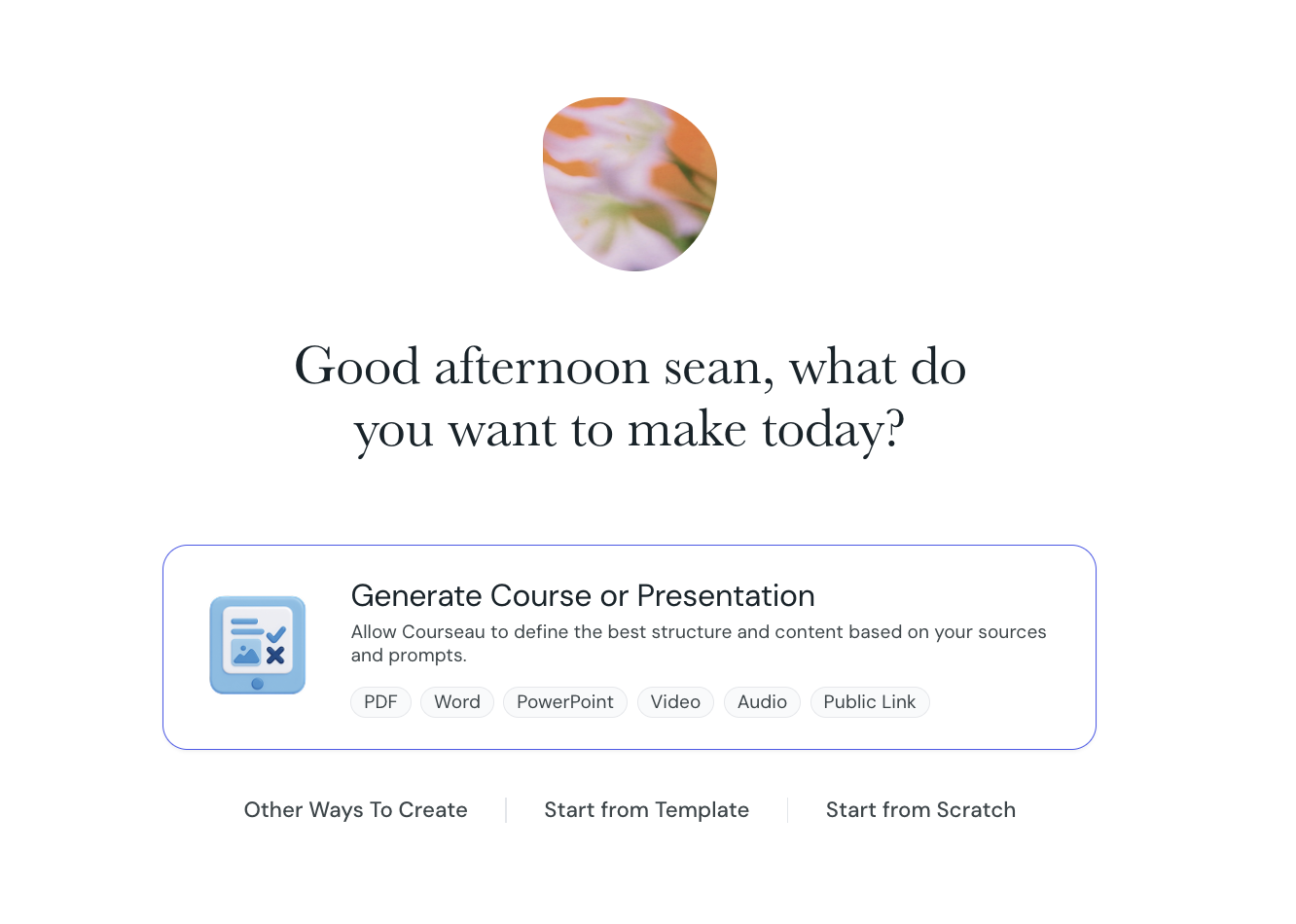
Generate a Course or Presentation converts a file, link, or video into a structured course. Use this path when you already have source material and want CreateUpon to build a course around it.
1. Select the Generate a Course or Presentation card.
2. Add your source: upload a PDF or PPTX, paste a URL or a link to a public Google Doc, Notion, or Confluence page, or upload a video or audio file.
3. Continue to the parameters step.
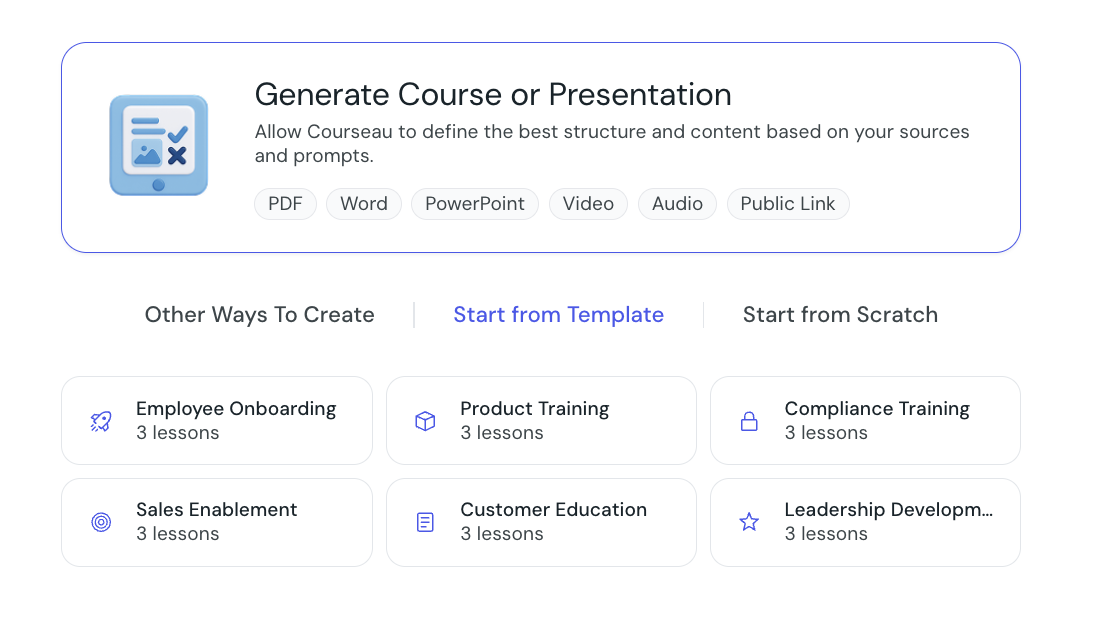
Templates prefill the topic, learner profile, learning outcomes, course length, tone, and outline, so you do not start from a blank canvas.
1. Open the Start from Template panel.
2. Select one of the six starter templates:
• Employee Onboarding
• Product Training
• Compliance Training
• Sales Enablement
• Customer Education
• Leadership Development
3. Review the prefilled fields, then adjust them to fit your audience and content.
Start from scratch when you want full control from the first field onward.
1. Open the Start from Scratch panel.
2. Select Start from Scratch to continue to the parameters step with empty fields.
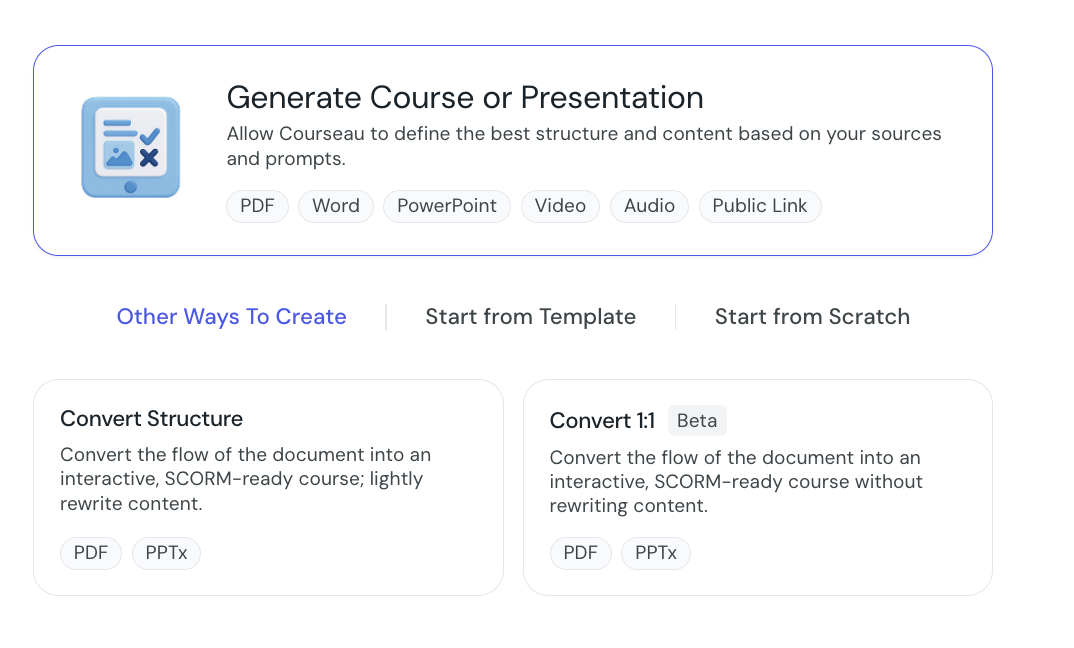
The Other Ways To Create panel groups additional entry points, such as Convert 1:1
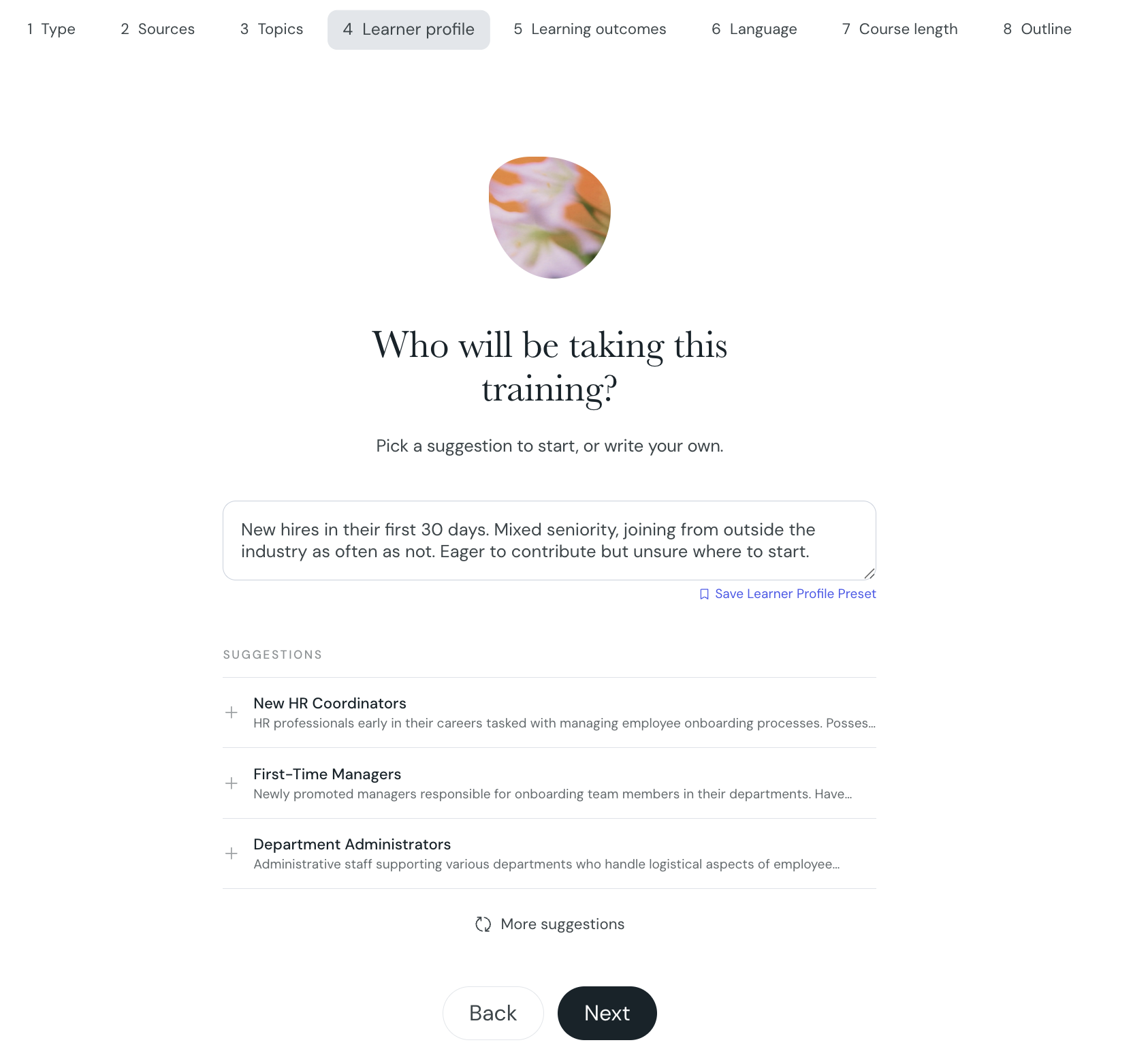
The parameters step shows some or all of these fields, depending on the path you chose in the first step.
The main subject of the course. A clear, focused topic produces a tighter outline.
Refines the course based on your audience. Include details such as age group, role, interests, and familiarity with the subject. You can save and reuse learner profiles across courses, and admins can publish organization-wide presets that everyone in the organization can select.
The skills or knowledge your learners should gain by the end of the course. Outcomes shape the structure and focus of the outline.
The number of lessons in the course. Pick from the preset lengths or enter a custom number.
The voice the AI uses when writing lesson content. Match the tone to your audience.
When you add sources, CreateUpon prioritizes them over the base language model when generating content. You can:
• upload PDFs, PPTX files, video, or audio files
• paste public URLs to web pages
• paste a link to a public Google Doc, Notion page, or Confluence page
A note on copyright: add references to any sources you do not own somewhere inside your course content. You can add references during editing.
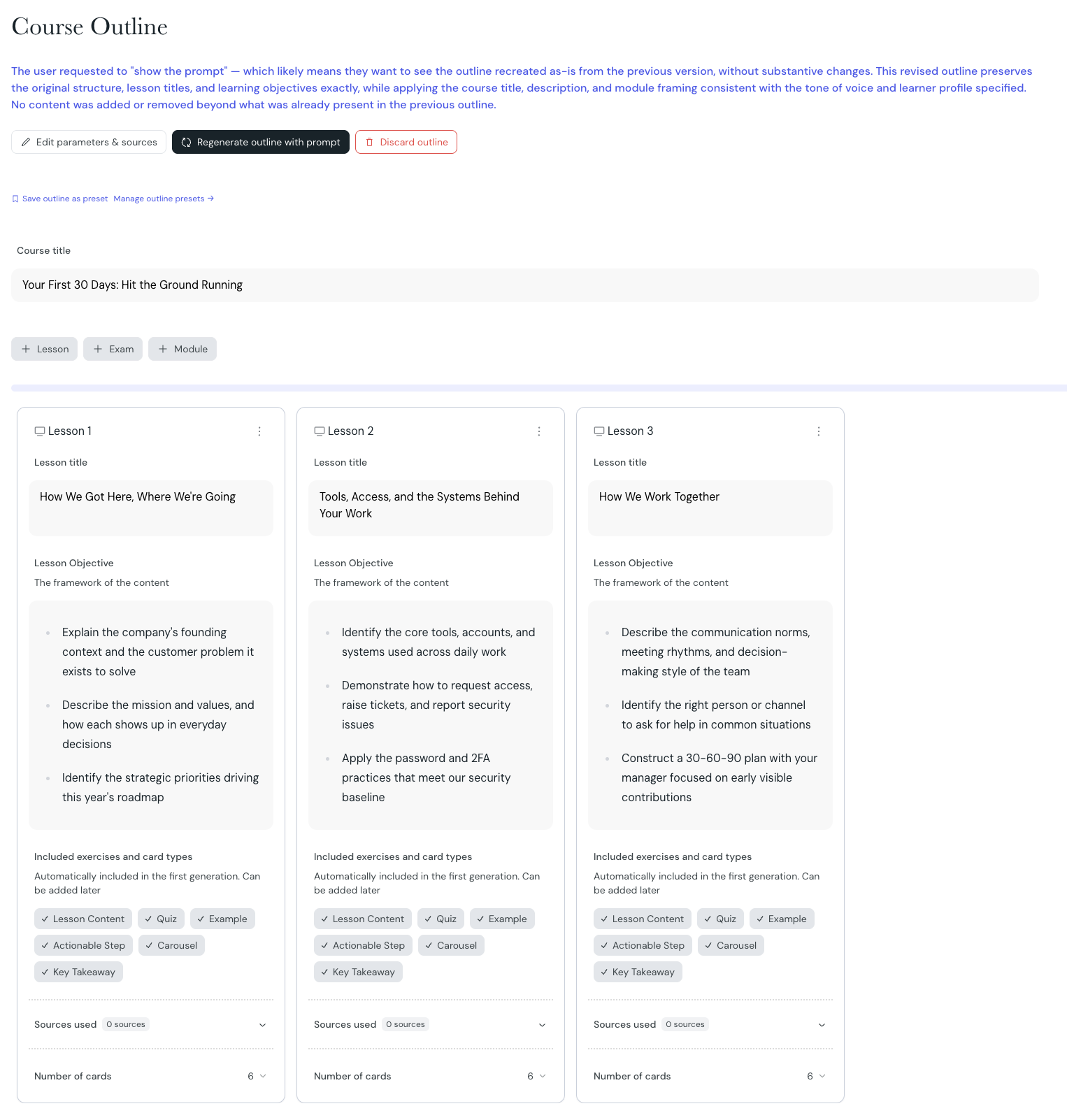
CreateUpon generates an outline from your inputs. You can also write or rearrange the outline yourself before generating lesson content.
The course hierarchy is:
Modules → Lessons / Exams → Cards → Elements
The generated outline includes:
• course title
• lesson title
• lesson objectives
• card types within each lesson
• quantity of cards within each lesson
At this stage you can add, delete, duplicate, and drag-and-drop modules and lessons. Everything in the outline is editable.
When the outline is ready, select Generate. CreateUpon builds the full course from your outline and parameters.
After generation, you can:
• add a new lesson or card by entering an objective
• regenerate any lesson or card with a fresh objective
• edit any card directly in the editor
