Each card in a course can contain a mix of text, media, quizzes, and interactive elements. Add elements inside an existing card, or create a new card to showcase a single element on its own.

1. Select anywhere in the card and press Enter.
2. Select the element you want to insert from the menu that appears.
3. Drag the element by its handle to reorder items within the card.
The insert menu groups elements by type:
• Text: Title, Heading, Small Heading, Bullet List, Numbered List, Check list, Quote, Code
• Media: Image, Image with Markers, Video, Youtube, Vimeo, Audio, Spotify
• Quiz: Multiple-choice, Open answer, True or False, Rank, Sorting, Matching
• Interactive: Button, Flip cards, Carousel, Chart, Website Embed, Embed HTML
• Section: Table, Columns, Grid, Steps, Timeline, Alternating, Cycle, Callout, Details, Divider
To showcase one element, such as a full-width image or video, create a dedicated card with a single-column layout.
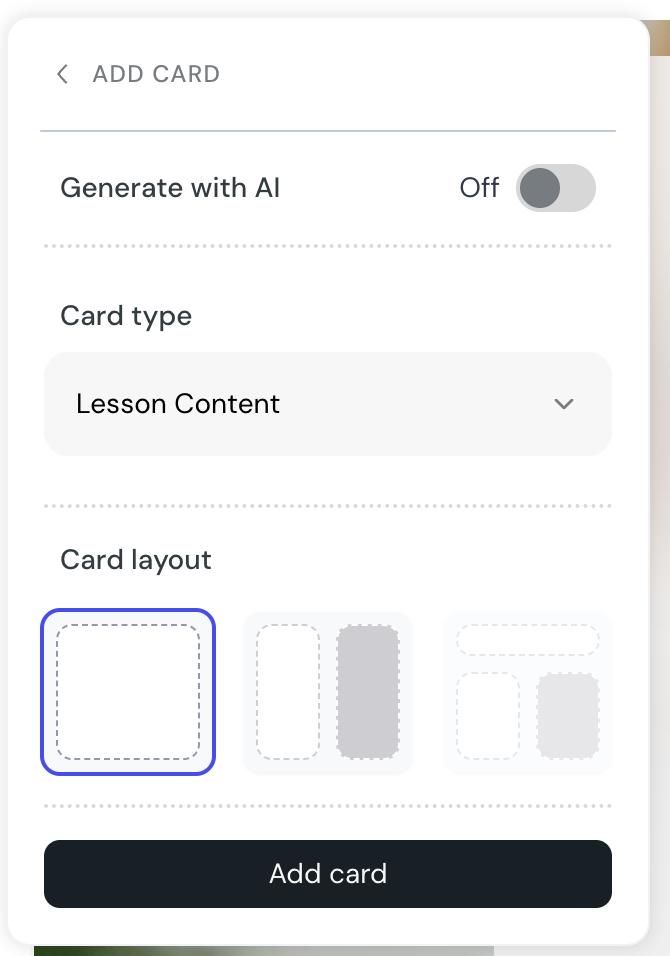
1. In the sidebar, select New above the course navigation.
2. Select Card.
3. Switch off Generate with AI.
4. From Card type, select Lesson Content.
5. From Card layout, select Single Column.
6. Select Add card.
7. Select inside the new card, press Enter, and choose your element from the insert menu.
After you add a Video, YouTube, Vimeo, or Website embed element, you can change its URL in place instead of deleting and re-adding it. Select the element to reveal its toolbar, choose the option to edit the URL, enter the new address, and press Enter to apply. The element reloads to show the new content.
Each slide in a Carousel element can hold one image, video, or embed, plus an optional audio clip alongside it. Select a slide, then use the Add Media dropdown to add the main media, and the Add Audio button to add an audio clip.
The Add Media dropdown offers:
Add Image
Add Video
Add Embed
These options use the same forms as the standalone media, video, embed, and audio elements. In the learner view, audio appears as a separate element below the slide media.
Learners can open any course image in a fullscreen lightbox while taking the course or while previewing it.
To open the lightbox:
• select the image with the mouse
• focus the image with the keyboard, then press Enter or Space
To close the lightbox:
• press Esc
• select the close button
• select the backdrop outside the image
The lightbox traps focus inside the dialog, returns focus to the image when it closes, and announces the image's alt text to screen readers. It also respects the operating system's Reduce motion setting.
