
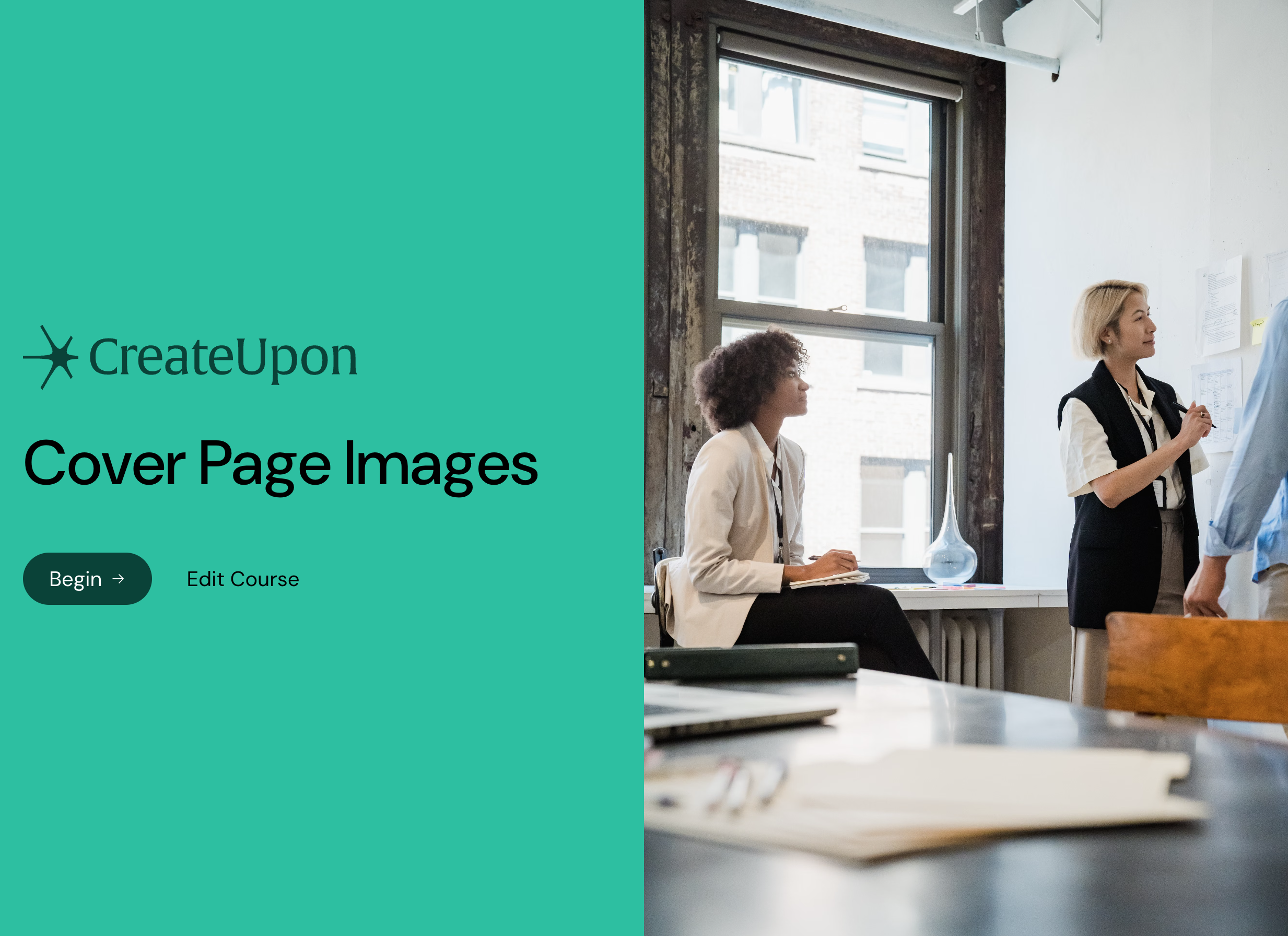
Choose either a vertical image in 4:5 or 2:3, or a horizontal image with its most important content in the centre. On larger devices, the cover is cropped to fit the screen and always stays centred, so the left and right edges of a horizontal image may be cut off.
Select any area where you can add an image (such as a card, lesson, content block, or existing image) and select Add image or Replace image.
In the image picker modal that opens, Generate with AI is selected by default.
In the text area, describe the image you want to generate.
Select Portrait (2:3 ratio) or Landscape (3:2 ratio).
Select Generate Image.
Once generated, select Insert image to add it to your content, or select Regenerate if you want to try again with the same or different prompt.
If a card or block already has an image, you can describe a change and have AI generate an edited version.
Select the image, then select Add image or Replace image to open the image picker.
Select the Edit with AI tab.
Describe the change you want. The edited image appears in the picker.
Select Portrait (2:3 ratio) or Landscape (3:2 ratio) if you want to change the shape.
Select Insert image to use the edited image, or refine your description and generate again.
You can set the focal point for any generated image that is set to fill.

Select Focal Point.
Click and drag the marker that appears in the middle of the image to your preferred spot.
Select Focal Point again to set it.
To get the best results from the AI image generator:
be precise, detailed, and direct in your descriptions
include specific details about style, lighting, and composition
for photorealistic images, mention camera details, such as "shot on iPhone 16"
Example: "A dancer in motion captured with an iPhone 16. The background is a dimly lit studio with a spotlight on the dancer. The motion blur conveys energy and fluidity."
If you prefer not to use AI, you can select one of the following options:
Upload image: upload your own images from your device
Free stock image: browse and use free stock images
From sources: reuse images from your project sources and uploads, if any

Add media, quizzes, and interactive elements to a card
Add video, images, quizzes, and interactive elements to your course
Card background
Change the background color or image of a card
Image with markers (Hotspots)
Add an image with markers as an interactive component to your course
