
A tone of voice preset is a saved description that tells CreateUpon how to write your course content. CreateUpon passes the preset to the AI that generates lessons, so the output matches the style you want.
CreateUpon includes 7 built-in tones:
friendly and informational
casual and conversational
enthusiastic and motivational
empathetic and supportive
technical and detailed
creative and imaginative
urgent and persuasive
You can use a built-in tone as is, or create your own. Custom presets show a [Custom] label in tone dropdowns.
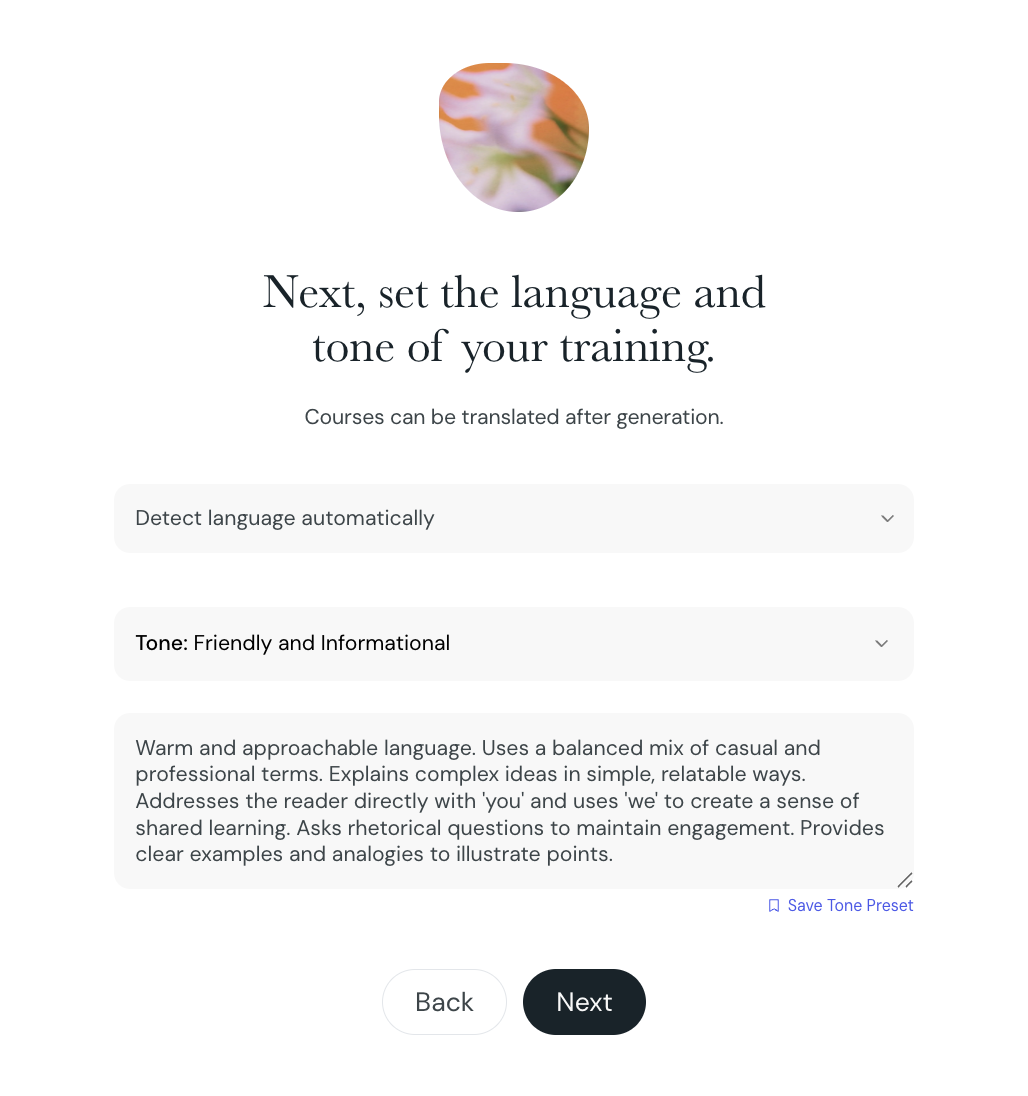
You can save a preset while you create a course.
1. Create a course from your CreateUpon dashboard.
2. In the Tone of Voice field, select a built-in tone or enter your own description.
3. Select Save Tone Preset.
4. Enter a name for the preset and confirm.
CreateUpon adds the preset to your organization's preset library. All members can then apply it to their courses.

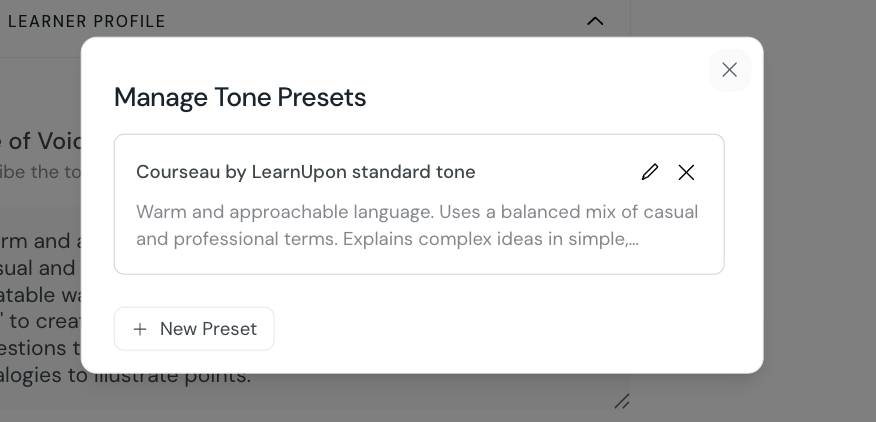
The Tone Presets page lists every preset in your organization.
1. From your CreateUpon dashboard, go to Settings > Presets > Tone Presets.
2. To create a preset, select New Preset, then enter a name and description.
3. To edit a preset, select its name and update the fields.
4. To remove a preset, select the delete option on the preset row.
You can also open this page from a course. In the Course settings dialog, select Manage Tone Presets from the Tone of Voice section.
You can change the tone of voice on a course after you create it.
Open the course you want to update.
Select Settings and then Course parameters.
In the Tone of Voice section, select a preset from manage presets, copy the information.
Paste into the Tone of Voice field.
Save your changes.
The tone applies to content generated from this point forward. Lessons that CreateUpon generated before the change keep their original wording unless you regenerate them.
A clear description helps CreateUpon match the tone you want. - -
describe the audience and the feeling the content should create - - -
include example phrases or words that reflect the tone
keep the description focused on tone, not on course structure or subject matter
pair adjectives with short context, for example "technical and precise, for software engineers"
Creating a course
A guide on the various ways to create a course, editing, and regeneration.
Course Topics
When creating a course, you can add topics to help categorize and focus your content. Each topic appears as an interactive "pill" that you can add or remove with a single click.
