An open answer element gives learners a text field where they can type a free-form response. Use open answers to prompt reflection, gather opinions, or let learners practice writing about what they have learned.

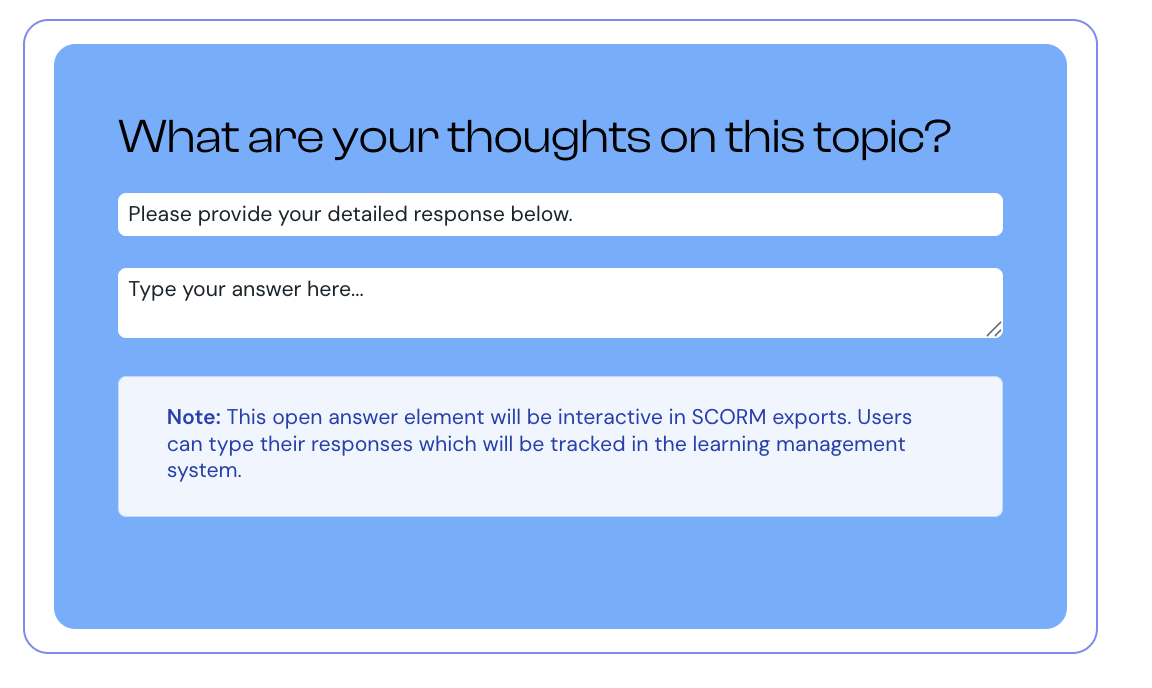
An open answer element shows a question or prompt and an empty text field. Learners type a response, then submit.
Responses are not marked right or wrong. There is no correct answer for the system to score against. When a learner submits, their answer is saved against their progress in the course.
If the course runs in a SCORM-compatible learning management system, the response is included in the SCORM data sent back to the LMS. Reviewers can read responses there if needed.
1. Select Open Answer from the element list to add it to your lesson.
2. Hover over the component and select Edit.
3. Enter your question or prompt. Make clear what you want learners to write about.
4. Optionally, add instruction text. Use it to suggest length, style, or what learners should think about before answering.
5. Optionally, set placeholder text that displays inside the empty text field as a hint or starter phrase.
6. Select Preview to check how the element appears to learners.
You can add an open answer element to an exam in the same way you add it to a lesson. It gives learners a free-text question alongside the exam's other questions.
When a learner submits a response, it counts toward their exam score. A non-empty answer earns one point; leaving it blank scores zero. The point reflects that the learner answered, not whether the answer is correct.
A learner's written response is saved with their exam results. It is kept out of usage analytics to protect what learners write.
Use open answers for reflection, journaling, and self-assessment, not for testing facts
Give learners a sense of expected length in the instruction text. "A sentence or two" sets clearer expectations than no guidance
Place the open answer right after the content it relates to. Asking learners to reflect immediately after teaching reinforces learning
If you plan to review responses, let learners know. They will write more carefully when they expect someone to read what they wrote
Add media, quizzes, and interactive elements to a card
How to add interactive lesson elements, including open answers, to a card.
