An exam is a guided experience for learners. They get a clear start, an in-exam mode that prevents accidental exits, and a results screen showing whether they passed. This article walks through what they see at each stage.

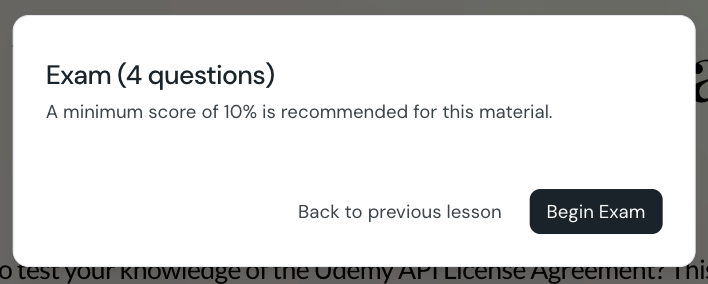
When a learner reaches an exam lesson, a dialog appears before the questions load. The dialog tells them:
how many questions are in the exam
the minimum score required to pass
whether the exam is required to move on
The dialog offers two buttons:
Begin Exam — starts the exam
Back to Previous Lesson — returns the learner to the lesson before, when one exists
Once the exam starts, an orange warning bar appears at the top of the screen. It signals that an exam is active and helps prevent learners from leaving by accident.
Learners cannot skip an exam that is in progress. If they try to navigate away, the system shows an explanation that they need to finish the exam first.
How each question behaves depends on the question type:
Multiple choice: learners select one or more options; selections save automatically
True or false: learners pick either button; the choice saves automatically
Ranking: learners drag items into order; the order saves as they go
Sorting: learners drag items into category buckets; placements save as they go
Matching: learners drag each prompt to its answer; pairings save as they go
During the exam, learners do not see whether each answer is right or wrong. Feedback is held until the exam is submitted.
Once a learner has answered every question, they submit the exam. CreateUpon scores the exam immediately:
each question is worth 1 point if every part of the answer is correct, and 0 points otherwise
the score is the percentage of questions answered correctly
the score is compared against the minimum score you set for the exam
When a learner reaches or beats the minimum score, the pass screen displays:
the score as a percentage, with a positive message such as "Your score: 80%. Nice work!"
a confirmation that they can move on to the next lesson
a Review Answers button to look back at each question
a Continue to Next Lesson button, when a next lesson exists
When a learner does not reach the minimum score, the fail screen displays the score and a message that depends on whether the exam is required:
for a required exam: "Your minimum score is X%. Please try again."
for an optional exam: "Your minimum score is X%. (Not required to proceed)"
Learners can select Try Again to retake the exam. Their previous answers are cleared and they start fresh.
The Review Answers screen lets learners look back through every question. For each one, they see:
the question text
their own answer, marked correct or incorrect
the explanation you set up for the question, for most question types
When learners take a course inside a SCORM-compatible learning management system, exam results sync back to the LMS:
the percentage score is recorded against the lesson
the lesson is marked passed or failed depending on the minimum score
the result persists across sessions, so a learner can come back later and see their progress
Create an exam
Add a new exam to a course, choose what it covers, pick the question types, and let CreateUpon generate the questions for you.
SCORM Completion & Scoring
This guide explains how course completion works when your CreateUpon course is exported as a SCORM package and imported into a Learning Management System (LMS).
