An exam is a graded lesson that tests learners on the material in your course. CreateUpon generates the questions for you based on what you ask the exam to cover, the question types you select, and the number of questions you want.

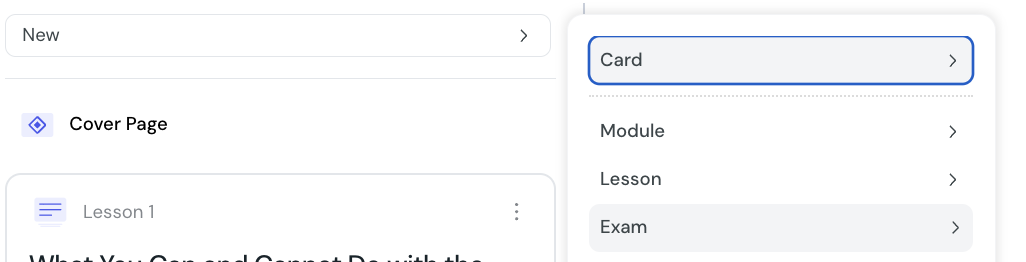
1. In the course sidebar, select New and choose Exam.
2. Pick where the exam should sit in the course outline.
3. Configure the four exam options described in the next sections.
4. Select Create. CreateUpon generates the exam content and adds it to your course.
The Exam objective setting tells CreateUpon which material to draw questions from. There are four options:
Current Lesson — CreateUpon generates questions only on the lesson immediately before the exam. Good for short, focused checks.
Current Module — CreateUpon generates questions on every lesson in the current module. Good for end-of-module assessments.
Entire Course — CreateUpon generates questions on every lesson in every module. Good for final exams.
Custom AI instructions — you type your own brief describing what to test. Use this when none of the structural options fit, for example to focus questions on a specific topic across multiple lessons.
Select which question types CreateUpon should generate. You can choose any combination of the five exam-compatible types:
Multiple Choice — select one or more correct answers from a list
True or False — decide whether a statement is true or false
Ranking — put items into the correct sequence
Sorting — drag items into the correct categories
Matching — pair prompts with their correct answers
Multiple Choice and True or False are selected by default. Selecting more types gives a more varied exam; selecting fewer keeps the experience focused.
Choose how many questions the exam should have. You can pick any value from 1 to 15. The default is 5.
This count is the number of scored questions. Each exam also includes a short intro slide explaining the exam, which is not counted toward this total.
If your course has source documents, you can choose which ones CreateUpon should use to generate questions. By default, all sources are included.
Limit the source list to focus questions on specific reference material. Leave the default in place to draw from everything you have provided.
CreateUpon generates the exam content using AI. This usually takes less than a minute, depending on the number of questions and the amount of source material.
Once generation finishes:
the new exam appears in your course sidebar
questions are scored automatically and immediately reflected in the learner's progress
you can review and edit any question before publishing
you can adjust the minimum passing score and progression rules in the exam settings
Place exams where you want learners to consolidate what they have learned: at the end of a lesson, module, or course
Choose a question count that matches the breadth of material. A 15-question exam after a single short lesson will feel repetitive
Mix question types. A varied exam keeps learners engaged and tests different kinds of understanding
Review the generated questions before sharing the course. AI generation is fast but not always perfect, and small edits often improve fairness and clarity
Multiple choice questions
Add multiple choice quizzes to a lesson or exam to test learners on a single correct answer or several correct answers from a list of options.
Ranking questions
Add ranking quizzes to a lesson or exam to test whether learners can place items in the correct order.
Matching questions
Add matching quizzes to a lesson or exam to test whether learners can pair related items, such as terms with definitions.
