Guest reviewing lets you invite someone outside your workspace to read a course and leave comments on it. A guest can open every lesson and reply to comments, but cannot change the course. It is a quick way to gather feedback from a subject-matter expert, a manager, or a client before you publish.

When you invite a guest, they get comment-only access to the whole course. A guest can:
• Read every lesson in the course.
• Leave comments anywhere on a lesson, including on an image. Point at the page or image and select Add comment.
• Reply to comments in the Comments panel, under the Open and Resolved tabs.
• Preview as a course or presentation.
A guest cannot:
• Edit the course or its content.
• Resolve comment threads. Resolving stays with the course owner.
• Delete other people's comments. A guest can delete only their own.

You invite guests from the Comments panel in the editor.
1. Open a lesson in the editor.
2. In the tool rail on the right, select Comments to open the comments panel.
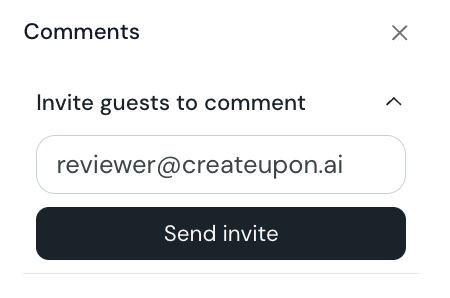
3. Select Invite guests to comment.
4. Enter the person's email address in the Guest email field.
5. Select Send invite.
CreateUpon emails the invitation to that address and confirms with Invitation emailed to the address. If the email cannot be sent, CreateUpon shows the invite link instead, so you can select Copy invite link and share it yourself.
The guest opens the invitation from their email and follows a short sign-in:
1. On the invitation page, headed You've been invited to comment, they select Accept invitation.
2. They sign in with the invited email address. CreateUpon emails them a code to confirm it is them.
3. The first time, they accept the Terms of Service and Privacy Policy to continue.
4. If their account has no name yet, they add the name others will see on their comments.
The course then opens in read-only mode with commenting turned on, and the guest can start leaving feedback.
You manage invitations from the same Comments panel, in the list below the email field. Each row shows when the invitation expires.
• Resend: send the invitation email again, for example if the guest cannot find it. Use the resend (paper plane) button next to the invitation.
• Revoke: remove a guest's access. Select the revoke button, then confirm in the Revoke invitation dialog. The guest loses access, but the comments they have already left stay on the course.
You can mention anyone who can see a course in a comment to get their attention. CreateUpon emails the person you mention, so they know to take a look.
To mention someone:
• In a comment, type @ and start typing a name.
• Choose a person from the list. CreateUpon shows the people who can see the course, including your teammates and any guest reviewers.
• The name becomes a chip in your comment. Post the comment as usual.
The person you mention gets an email with a snippet of your comment and a link. The link opens the course with your comment selected, so they land right where you need them.
Course editor navigation
Find your way around the course editor: the top bar, the outline toggle, and the right-hand tool rail.
Share a course: 8 ways to distribute your work
Publish a course, then share it as a link, embed, SCORM package, PDF, PowerPoint, or audio file
