
The course editor is organized into three areas: a top bar across the top, a course outline you can open on the left, and a tool rail down the right. The lesson you are editing sits on the card in the middle. This article covers the top bar and the tool rail. For the outline itself, see the course sidebar article at the end.
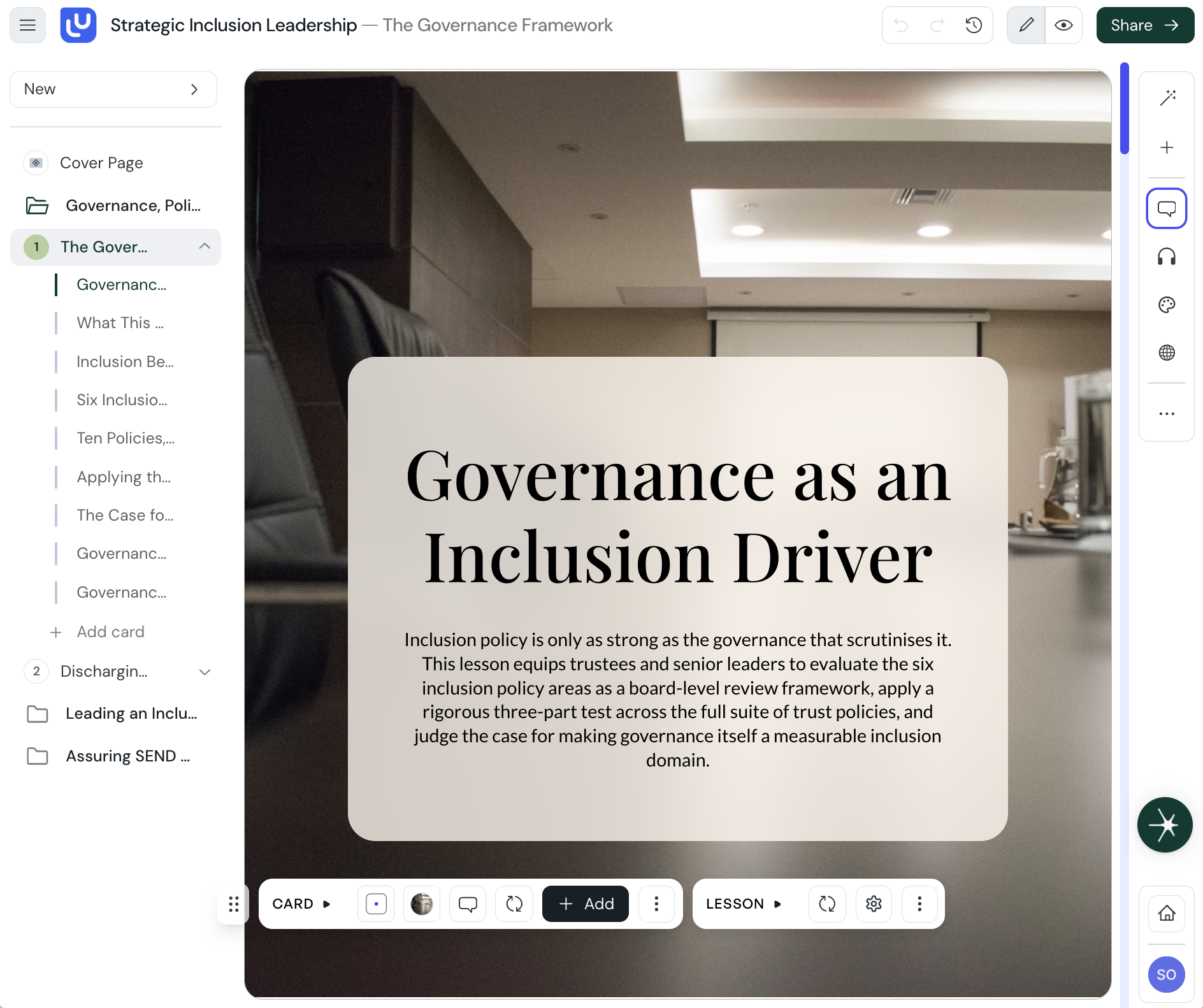
• The outline toggle (the hamburger button) shows or hides the course outline on the left.
• The logo takes you back to your library. It shows your organization's logo, or the CreateUpon logo on a personal account.
• The course title, followed by the lesson you are editing.
• Undo and redo, with version history for card-based courses.
• Edit and Preview course: Edit is the mode you are in, and Preview course opens the learner view in a new tab.
• Collaboration avatars show who else is working in the course.
• The green Share button opens the sharing menu, where you publish and distribute the course.

The tool rail floats on the right of the editor. It groups the editing tools into two panels, and each button opens its menu just to the left of the rail.
• AI: edit the lesson by chatting in plain language, when it is turned on for your account.
• Add elements: open the panel of elements you can add to a lesson, such as images, quizzes, and layouts.
• Comments: open the comments panel to review and reply to feedback.
• Audio: add or manage the lesson voiceover.
• Themes: open the design panel to set the colors, fonts, and logo.
• Translation: translate the course into other languages.
• More settings (the three-dot menu): Analytics, Course parameters, Collect course feedback, Copy outline to clipboard, Duplicate course, and Delete course.
• Back to library: return to your course library.
• Your account: open your account menu.

Course navigation: the sidebar for lessons, modules, and cards
How the left-hand sidebar works in the viewer and the editor: numbered lessons, modules, cards, progress, and the collapsed rail.
AI Assistant: edit your lesson by chatting
Ask the AI Assistant to edit your lesson in plain language, then review and accept its changes.
Share a course: 8 ways to distribute your work
Publish a course, then share it as a link, embed, SCORM package, PDF, PowerPoint, or audio file
