
AI-Powered Generation replaces the step-by-step creation wizard with a conversation. Instead of filling in a fixed sequence of fields, you describe the course you want and an assistant builds a structured course plan with you. When the plan is ready, it generates the full course from that plan. You can attach your own source material so the content stays grounded in it.
The standard flow walks you through set steps: sources, topics, learners, outcomes, tone, and length, then an outline. AI-Powered Generation covers the same ground through a conversation. The assistant asks about one thing at a time, drafts the plan as you go, and moves on when you give it the go-ahead. You can edit the plan directly at any point.
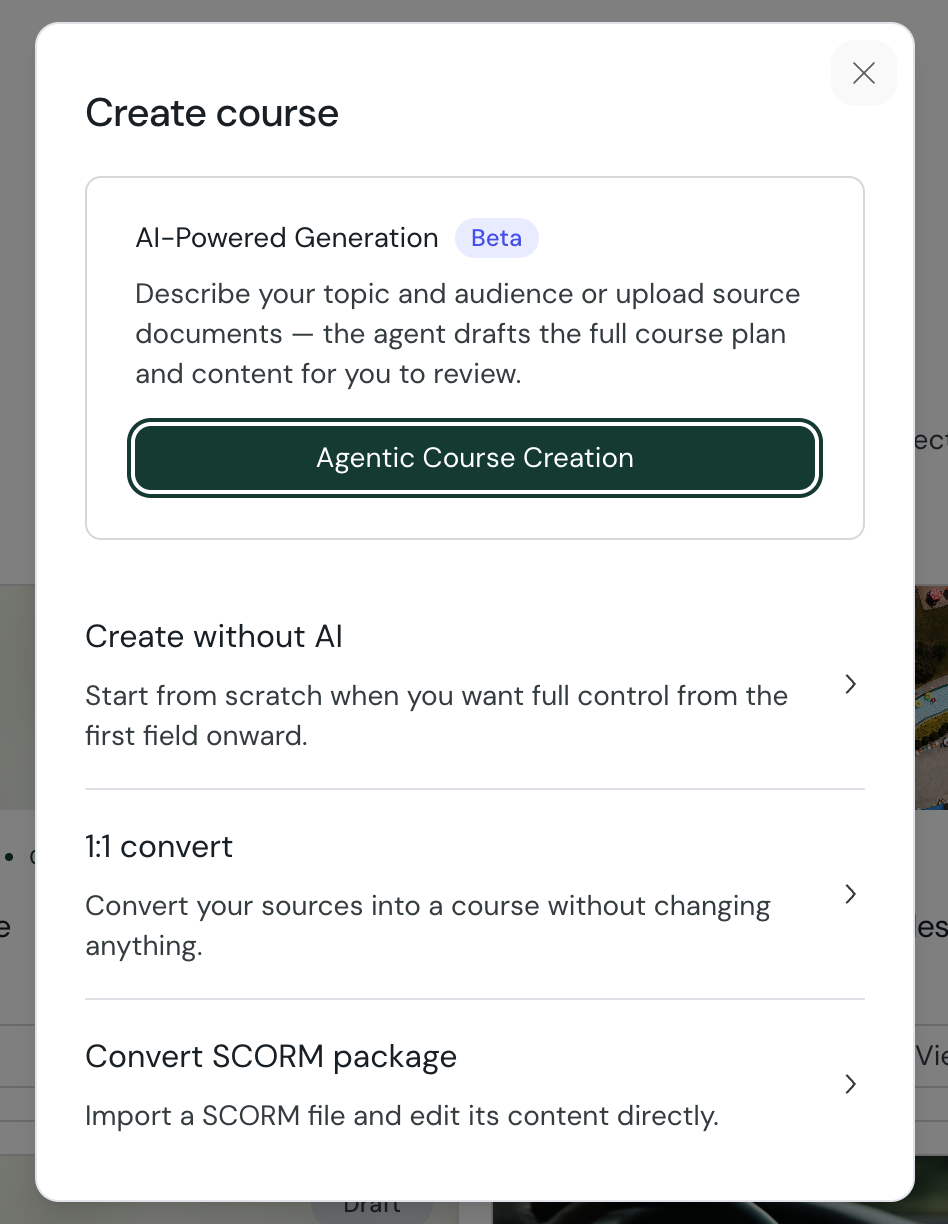
From your library, select Create Course, then choose AI-Powered Generation (marked Beta). The other creation modes stay available under the same menu.
You start on a blank plan, with the prompt Let's create a plan for your course. Tell the assistant what you want to build, in your own words. You can start from a short description, or from your sources. The assistant asks one question at a time and fills in the plan as you answer.
Message the assistant to describe the course, answer its questions, or ask it to change something.
Select Draft a plan from your sources to have it propose a plan from the material you have added.
Sources ground the course in your own material, so the content stays close to what you provide. Add them from the Sources panel.
Upload a file: PDF, Word, PowerPoint, audio, or video.
Add a link: a public web page or video.
From your other courses: reuse sources you have already added to other courses.
The plan is the structured brief the course is generated from. You can edit any part of it directly, or ask the assistant to change it. It covers:
Course title and description
Project purpose: what the course covers, and what it leaves out
Who it's for: the learners, and what to assume they already know
Learning outcomes and objectives: what learners will be able to do
Course length
Tone of voice
Optional: training type, language, and open questions still to decide
A readiness check shows when the plan has enough to generate a strong course, and points out anything still missing.
When the plan is ready, select Generate outline. The assistant builds the course outline from the plan, then generates the full course after your approval. From there you review and refine it in the editor, the same as any other course.
Creating a course: the default step-by-step (Generate) flow
A step-by-step walkthrough of the default course creation flow, from adding your sources to reviewing the AI-generated outline, with tips for a strong result at every step.
