As you build a course, you can add new cards, lessons, exams, and modules at any time. You add them all from the New menu in the course editor sidebar.

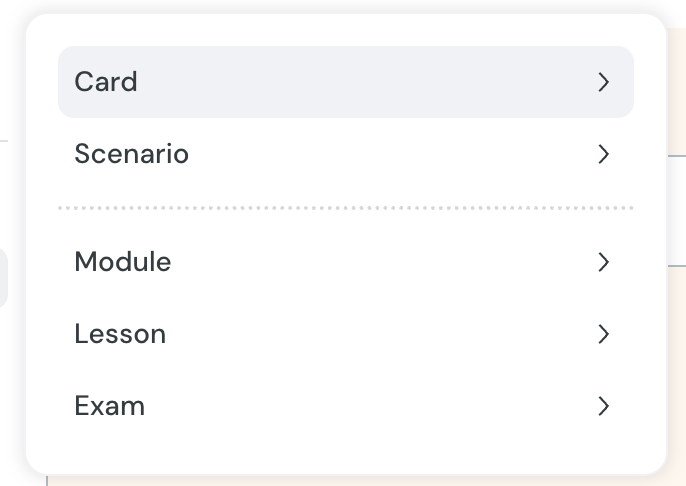
In the sidebar, select New above the course navigation. When the sidebar is collapsed, select the + button instead. Then choose what you want to add:
• Card: a single slide, such as a quiz, example, or key takeaway.
• Lesson: a page made up of one or more cards.
• Exam: a set of questions that tests the learner.
• Module: a section that groups related lessons and cards.
Selecting Card opens the Add a card gallery of card types and templates.
1. Browse or search the gallery, then select a card.
2. Select Insert card to add it as is, or Draft with AI to have the assistant write it for you.
Selecting Lesson opens the lesson panel.
1. Keep Generate with AI on to have CreateUpon draft the lesson, or switch it off to add an empty lesson you write yourself.
2. With Generate with AI on, enter your Lesson objectives, and optionally choose which Source references to draw from.
3. Select Add lesson.
Selecting Exam opens the exam panel. An exam is always generated from the settings you choose.
1. Set the Exam objective: Current Lesson, Current Module, Entire Course, or Custom AI Instructions.
2. Choose the Question Types to include.
3. Set the Number of questions.
4. Select Insert Exam.
Selecting Module adds an empty module to the course. A module groups related lessons and cards. Add lessons and cards inside it the same way.
Custom and pre-built card templates
Add cards from ready-made templates, draft them with AI, and save your own for your team to reuse.
Rearrange lessons and cards
Drag and drop cards, lessons and modules to restructure a course.
