
An outline preset is a saved course outline that admins make available to everyone in the organization. When a member applies a preset during course creation, CreateUpon fills in the outline so the new course starts from the same structure each time.
Each preset captures the full outline, including:
course title
modules
lesson titles
lesson objectives
card types within each lesson
quantity of cards within each lesson
Outline presets appear alongside learner profile presets in the course creation flow, so teams can reuse a consistent structure across projects.
Admins create outline presets from the outline step of the course creation flow. Build the outline you want to reuse, then save it as a preset.
1. From your CreateUpon dashboard, select Create to start a new course.
2. Complete the parameters step, then continue to the outline step.
3. Generate the outline, or write and arrange it yourself.
4. Select Save as preset.
5. Enter a name for the preset and confirm.
CreateUpon adds the preset to your organization's preset library. All members can then apply it to their courses.
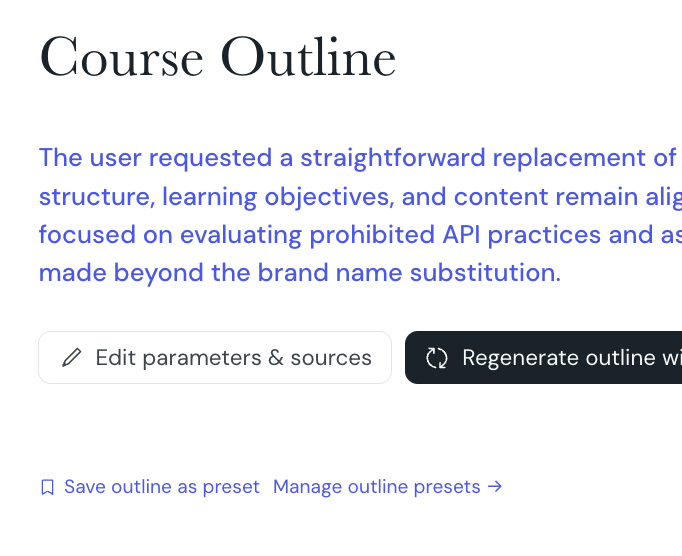
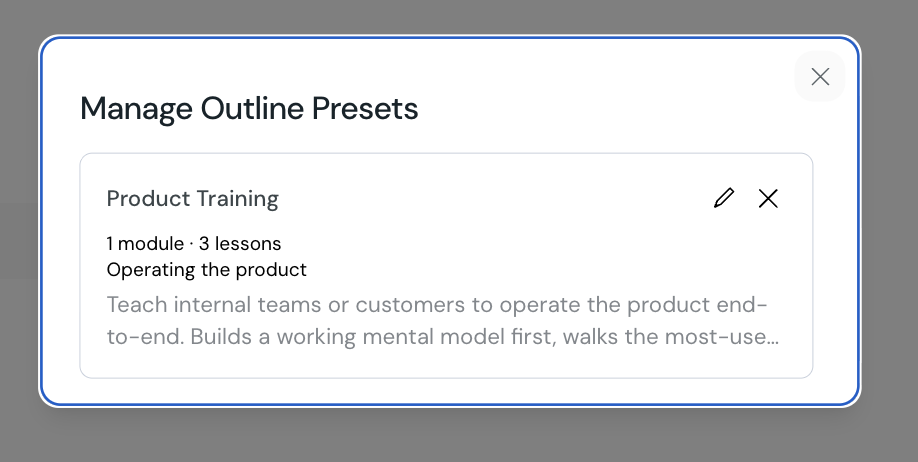
Admins can edit and delete presets from the same outline step where they were created.
1. Start a course and continue to the outline step.
2. Open the outline preset list to see every preset in your organization.
3. To edit a preset, select it and update the outline, then save your changes.
4. To remove a preset, select the delete option on the preset row.
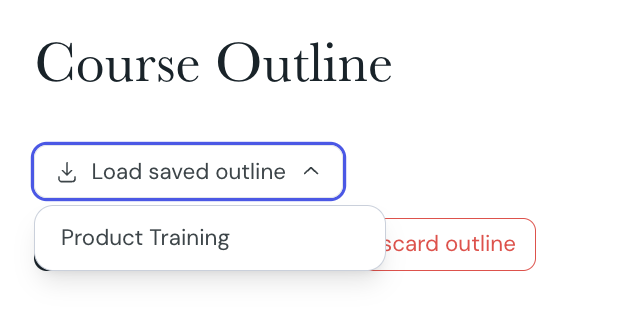
Any member of the organization can apply a preset while creating a course.
1. Start a new course and complete the parameters step.
2. On the outline step, open the preset list and select the preset you want to use.
3. Review the prefilled outline and edit it to fit your course.
4. Continue to generate the course.
A useful preset is one that members can apply with minimal editing.
name presets after their use case, for example "product launch course" or "new hire week 1"
keep lesson objectives generic enough to apply across topics
aim for a card mix that suits most courses, not a single subject
review presets after major content updates so they stay aligned with how your team writes courses
Creating a course
Choose how to create your course, set parameters, edit the outline, and generate lesson content.
Tone of voice presets
Tone of voice presets let you define how CreateUpon generates course content. You save a preset once, then apply it to any course in your organization.
