
Accordion organizes content into a vertical stack of collapsible sections. Each section has a header. Learners select a header to expand or collapse that section. CreateUpon labels the sections Section 1, Section 2, and so on until you rename them. A learner can keep more than one section open at a time.
Accordion works well for:
• questions and answers, such as an FAQ
• long reference material a learner can scan and open as needed
• detailed steps you want to keep collapsed until needed
• grouping related points without making the card long
Sections stack vertically on any screen size, so the layout stays readable on small devices.
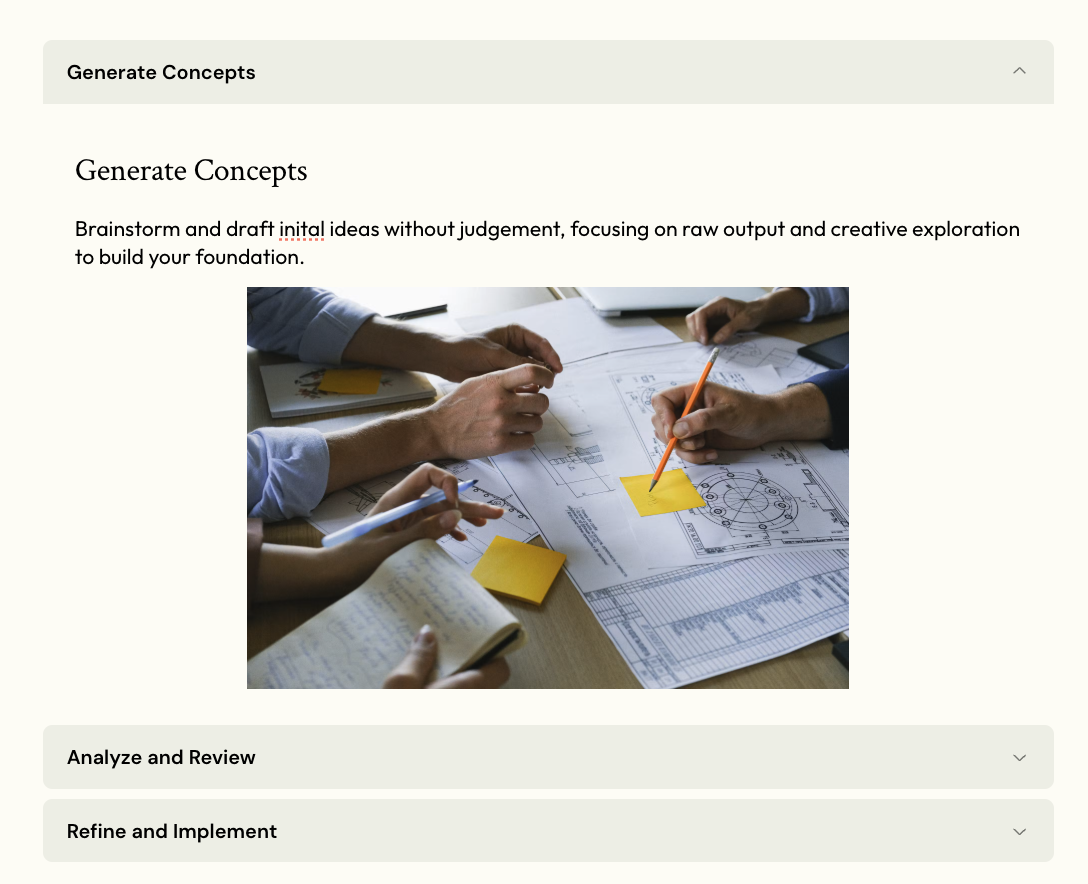
You can add an Accordion block anywhere in a lesson card.
1. Open the lesson in the lesson editor.
2. Place the cursor on an empty line inside a card.
3. Type / to open the insert menu, then select Accordion.
The editor adds an Accordion block with 2 sections. Each section starts with a placeholder heading and description.
Each section has a label in its header. New sections are labeled Section 1, Section 2, and so on.
1. Select the pencil icon on the section header.
2. Type a new label.
3. Press Enter to save, or Esc to cancel.
Sections you have not renamed keep their default numbering and update as you add or remove sections.
Select a section header to expand or collapse that section. Sections open by default. A learner can keep several sections open at once.
Each section holds its own content area. A section accepts any kind of block content. You can add:
• headings and paragraphs
• images, videos, and other media
• code blocks
• nested layout blocks
Select inside a section and type or paste your content.
An Accordion block supports 2 to 10 sections.
1. Select the Accordion block.
2. In the toolbar, find the cell counter.
3. Select + to add a section, or − to remove the last section.

The toolbar above a selected Accordion block offers more controls.
• Layout type: switch between Grid, Steps, Timeline, Alternating, Cycle, Tabs, and Accordion
• Color: set a color for the block
• Constrain width: limit the block to 800 pixels wide, or switch to Full width to fill the page
• Icon: add an icon next to a section's header. Select the section, then pick an icon from the cell toolbar.
